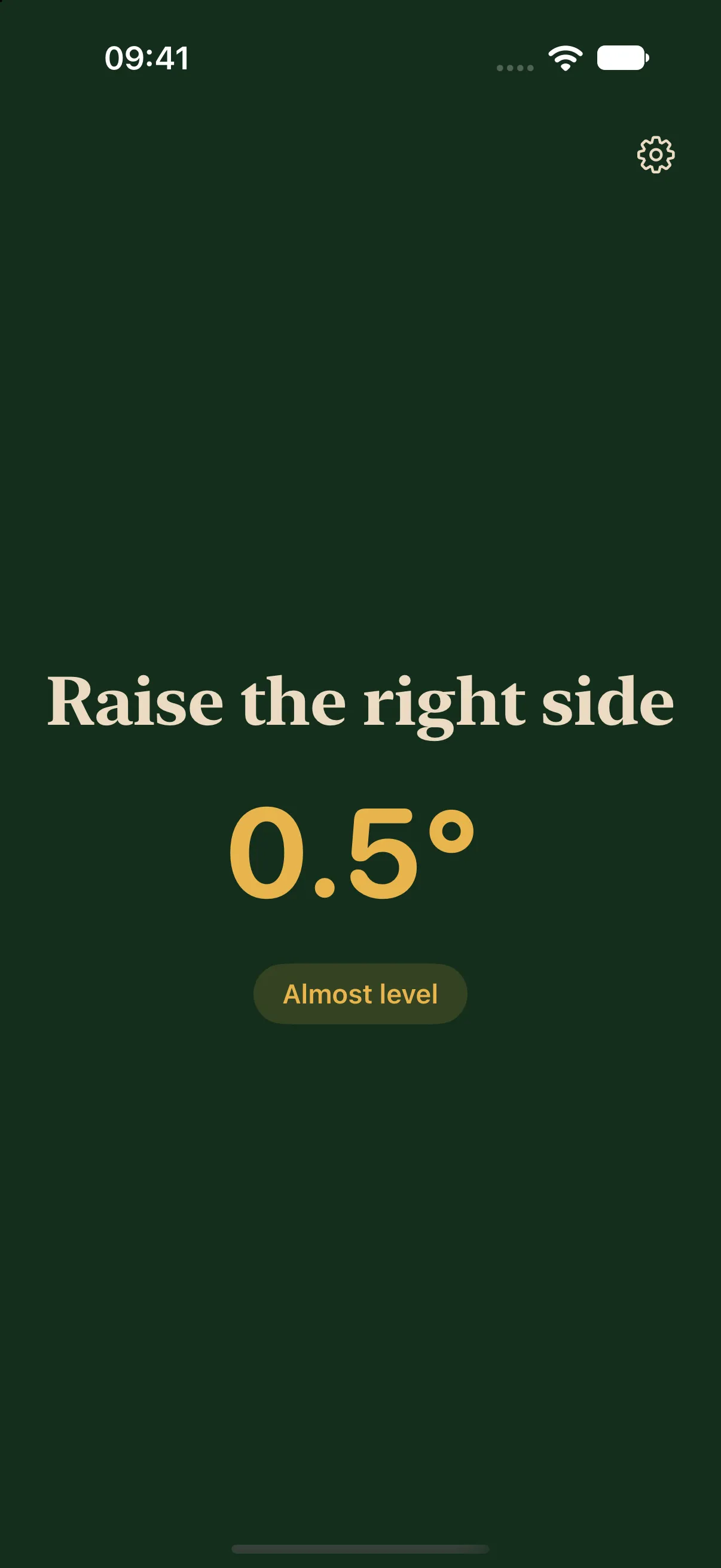
One iPhone measures, the other device displays and speaks
LevelMate can send measurements from inside the caravan to a second iPhone or an iPad. The sender iPhone stays inside and measures tilt. The receiver displays directions outside and speaks the next steps. An iPad is a receiver only and does not measure by itself.
Receiving on a second device is part of LevelMate Pro. Pro is a one-time in-app purchase with no subscription. Customers who bought the earlier paid app keep Pro. To try LevelMate without a second device, you can measure and hear spoken guidance for free on a single iPhone.
Prepare both devices
Install LevelMate on both devices. You need iOS 26.2 or later on the iPhone and iPadOS 26.2 or later on the iPad. The interface and spoken guidance are available in English and German. No account or separate sensor is required.
Turn on Wi-Fi and Bluetooth on both devices. Allow Local Network access for LevelMate on both devices when the system asks. The local connection does not need internet access. Keep LevelMate open in the foreground on both devices throughout setup and measurement.
Connect the sender and receiver
Set the device roles before measuring.
- Open LevelMate on the iPhone that will stay inside the caravan.
- In its settings, select Sender device under Mode.
- Open LevelMate on the second iPhone and select Receiver device. The iPad uses the receiver role automatically.
- On the receiver, tap the discovered sender iPhone.
- Put the sender iPhone screen down on a firm surface. Point its top edge towards the drawbar.
- Wait for the receiver to show measurements and the current direction. Spoken guidance starts when measurements arrive.
You can hold the receiver outside. Its orientation does not change the measurement. Leave the sender iPhone in the same place. The iPhone guide explains placement. If you use a fixed mount, follow the calibration guide when you need a saved reference.
If no sender or measurement appears
Check the roles first. One iPhone must act as the sender, and the other device must act as the receiver. Check Wi-Fi, Bluetooth, and Local Network permission for LevelMate on both devices. Keep both apps in the foreground and tap Try again on the receiver.
If the devices connect but no measurements arrive, check the sender app and the iPhone’s position. Its screen must face down. There is no guaranteed connection range. Visit the help page for further steps.
Once connected, follow side-to-side tilt first, then front-to-back tilt. The caravan levelling guide explains the directions. For guidance on your wrist, follow the Apple Watch setup guide instead.