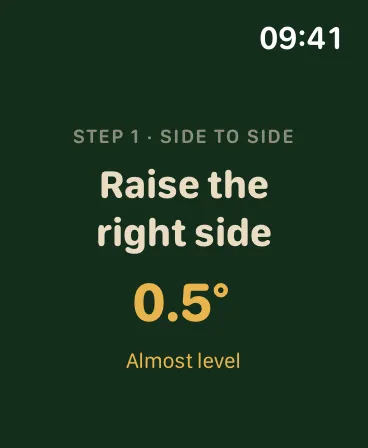
The iPhone measures, the Watch guides you outside
In Watch mode, the iPhone stays inside the caravan and measures its tilt. The Apple Watch receives the readings and shows the next direction on your wrist. Moving your wrist does not change the measurement. The Watch is the receiver, and the iPhone remains the sensor.
LevelMate guides you through side-to-side tilt first, then front-to-back tilt. The Watch provides visual prompts and haptic feedback. Watch mode, second-iPhone mode, and iPad reception are included in Pro. Pro is a one-time in-app purchase with no subscription. Customers who bought the earlier paid app keep Pro.
Prepare the iPhone and Apple Watch
You need an iPhone with iOS 26.2 or later and a paired Apple Watch with watchOS 26.2 or later. Install LevelMate on both devices. The app’s interface and spoken guidance are available in English and German. No account or separate sensor is required.
Set up the mode in this order.
- Open LevelMate on the iPhone.
- Open settings and select Apple Watch under Mode. Unlock Pro if the mode is still locked.
- Open LevelMate on the paired Apple Watch.
- Put the iPhone screen down on a firm surface inside the caravan. Point its top edge towards the drawbar.
- Keep both apps open. Wait for the Watch to show the measurement and current prompt.
The iPhone guide explains placement. Calibration is normally unnecessary. For a fixed mount, read the zero-point calibration guide.
Follow the prompts on your wrist
Leave the iPhone in place while you read the Watch outside. Follow the side-to-side prompt first. When LevelMate moves to front-to-back tilt, the Watch shows the direction for the front. Check the current status after each adjustment.
Displayed angles are rounded to 0.5° steps. That does not specify measurement accuracy. The caravan levelling guide explains the status and directions. Follow your caravan and accessory handbooks for physical adjustments.
Restore the connection
If the Watch is not receiving measurements, first check the selected mode on the iPhone. Keep LevelMate open on both devices. Check that the iPhone and Watch are paired and that their connection is available. If needed, reopen the iPhone app first, then the Watch app. Restart both apps if the connection still does not recover.
There is no guaranteed connection range. Visit the help page for more support. Without a Watch, you can use the free iPhone mode with spoken guidance or use Pro to set up a second iPhone or iPad.